Halo CE Mobile
Touch layouts and controller options are documented. Supply a verified Xbox Halo CE .iso or .xiso from your own copy. Online matchmaking has a separate project-account flow.
Open mobile launcher ↗ RadiantGames.
OWN GAME IMAGE · PROJECT TAB
Choose a Halo: Combat Evolved browser project for your device before importing anything. Desktop and mobile launchers use their own interfaces and compatible game-image requirements.
Launcher or documentation reviewed October 12, 2026. Full campaigns, every map and every device are not tested.
By RadiantGames · Content updated
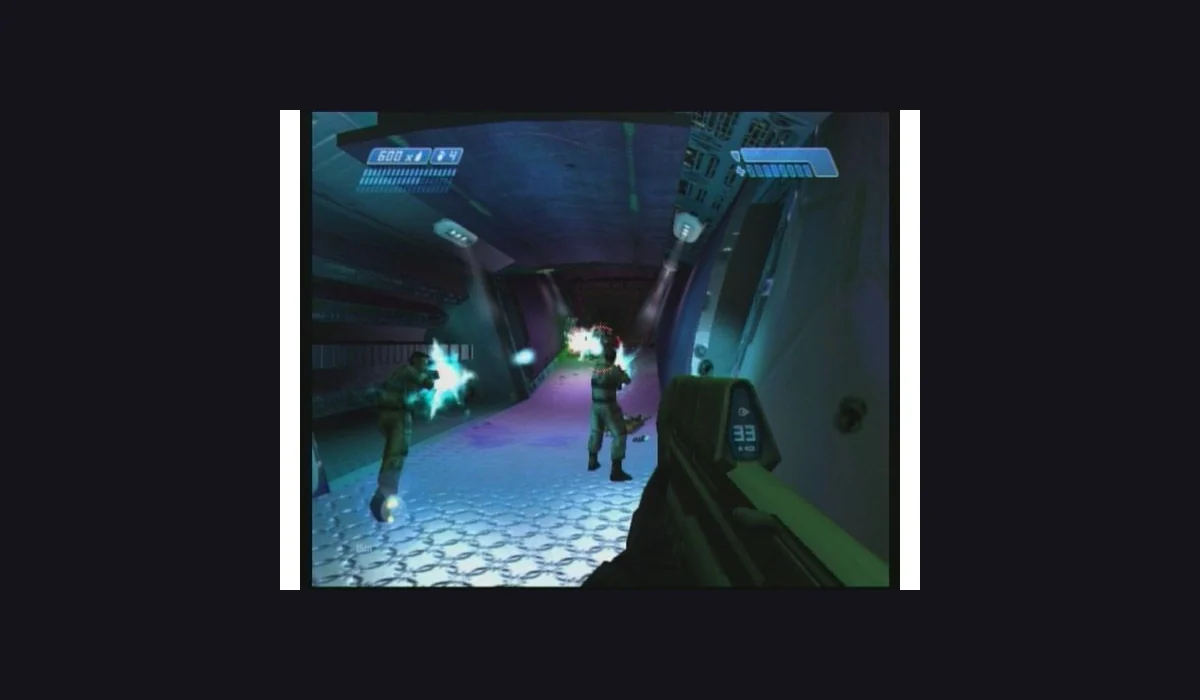
Use Halo CE Mobile for its documented touch options, or the desktop project for keyboard and mouse.
HCEMobile lists verified Xbox .iso/.xiso copies. Mitchell Hynes asks for an XISO from your own Xbox Halo CE copy.
Follow that launcher’s file choice, storage and control settings. Let preparation finish before entering the game.
CHOOSE YOUR HALO INTERFACE
Touch layouts and controller options are documented. Supply a verified Xbox Halo CE .iso or .xiso from your own copy. Online matchmaking has a separate project-account flow.
Open mobile launcher ↗The Mitchell Hynes launcher asks for a compatible Xbox XISO. Use its focus action and current control mapping. Importing into another host does not prepare this launcher.
Open desktop launcher ↗BEFORE YOUR NEXT SESSION
Halo CE Mobile documents touch layouts, gamepads and keyboard and mouse. Its launcher imports a verified original-Xbox Halo: Combat Evolved image. The desktop project by Mitchell Hynes instead presents an XISO picker and a mouse-focus control. These are two independently hosted launch routes, so instructions for one should not be assumed to fit the other.
Pick the interface that matches the device you actually plan to use. A desktop browser is useful for testing keyboard and mouse focus. A phone session benefits from a project that explicitly provides touch controls. If you change projects later, read the new launcher’s requirements from the beginning rather than assuming its saved data will follow you.
Use your own compatible Xbox Halo CE image. HCEMobile currently accepts verified .iso or .xiso copies and prepares the game’s maps in private browser storage, with a listed size up to 1.8 GB. Mitchell Hynes’ page specifically asks for XISO data. RadiantGames does not host these images or supply an alternative download.
Check the exact extension and game edition in the selected launcher before choosing a large file. An unrelated archive or a different Halo release will not become compatible just because its filename ends in .iso. Keep the project’s error message visible if an import fails: it is more useful than repeatedly selecting the same file without changing anything.
HCEMobile provides editable touch layouts and controller options. Mitchell Hynes’ desktop page displays a keyboard mapping and a Focus game action. Read the destination’s current prompts before remapping inputs. Follow its own fullscreen action if you need a larger view.
When aiming does not respond on desktop, click the game scene or its focus control. A focused guide, browser address bar or file picker can receive keys instead of the game. After Escape releases the pointer, focus the scene again. On mobile, test the documented touch layout before a longer session; do not use the desktop mapping as proof of phone support.
An image import is a preparation stage, not an instant match. Leave the selected launcher open while it reads or prepares data. Close another demanding game before comparing performance. If the page reports missing game data, check the import stage rather than treating it as a mouse problem.
HCEMobile exposes saved-game export and restore actions. Use the selected project’s instructions before clearing site data or switching browser profiles. A RadiantGames bookmark only stores a launcher link; it cannot back up a Halo save. If you need help separating a blank screen from an input problem, use the browser game launch guide.
A Halo CE browser mobile search calls for two checks: whether the selected project documents touch input, and whether you have the image that launcher accepts. HCEMobile and the desktop launcher are different host and storage contexts. Preparing files on one does not prepare the other.
Read the Halo ISO/XISO file comparison before importing. If you first want to try a classic without that image branch, the browser PC games collection compares Uplink, Diablo shareware and QuakeWorld. The App play desk keeps those three launch flows separate.
The reviewed Halo CE projects require compatible game data from your own Xbox copy. This directory provides instructions and project links, not the image.
Halo CE Mobile documents touch layouts. Check its device and game-image guidance before starting.
Do not assume so. Each project uses its own launch and storage context; follow the instructions for the destination you choose.
No. These pages describe Halo: Combat Evolved browser projects, not Halo Infinite or a general cloud-streaming service.
Project features and requirements can change. The destination’s current instructions take precedence over these reviewed notes.
YOUR NEXT GAME
Pick a different experience or save a route for your next visit.
BROWSE WITH A PURPOSE
FROM REFERENCE TO PLAY
Compare versions here; use RadiantGames App for players and session help.