Kino der Toten browser route
Open the selector and choose Kino der Toten. Keep this guide beside the project while the map loads.
Choose Kino der Toten ↗ RadiantGames.
EXTERNAL PROJECT · DESKTOP FIRST
Looking for BO1 browser Zombies? Enter a name, choose Singleplayer or Multiplayer and select Classic or Counter-Strike guns before Choose Map. Then open Kino der Toten, Moon or another listed map in the project tab.
Launcher or documentation reviewed October 12, 2026. Full campaigns, every map and every device are not tested.
By RadiantGames · Content updated
Enter a player name. Choose Singleplayer or Multiplayer, then Classic or Counter-Strike guns.
Press Choose Map to reach the selector, then pick Kino der Toten, Moon or another named map.
Allow the map to finish loading. Click inside the game and follow its current control prompts.
PICK YOUR BO1 MAP
Use one map at a time for your first launch. The project selector controls which maps are currently available.
Open the selector and choose Kino der Toten. Keep this guide beside the project while the map loads.
Choose Kino der Toten ↗Choose Moon by name in the selector. Its map load is separate from loading the BO1 selection page.
Choose Moon ↗Select Five in the same project. A listed map is a launch option; all rounds and features have not been tested here.
Choose Five ↗BEFORE YOUR NEXT SESSION
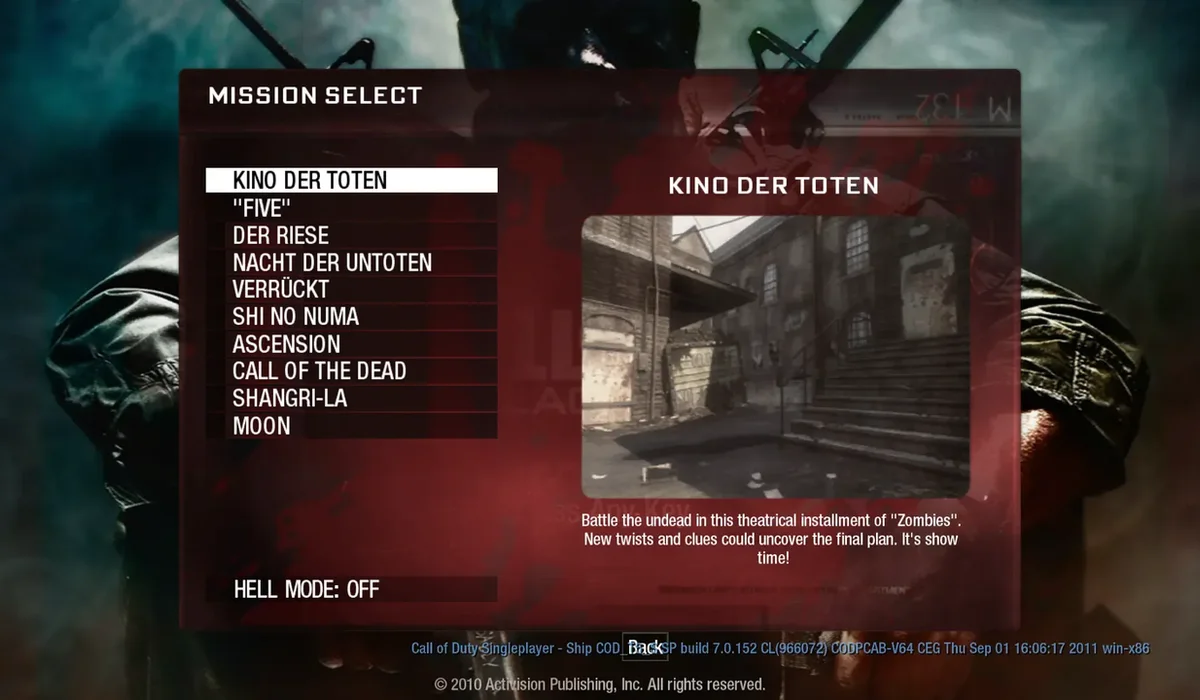
The current selector links to Kino der Toten, Five, Der Riese, Nacht der Untoten, Verrückt, Shi No Numa, Ascension, Call of the Dead, Shangri-La and Moon. These are menu entries we checked, rather than a claim that every map or round has been tested. Use the selector to see the project’s current choices.
Kino is a sensible first destination when you want to check whether a map will launch on your device. If you came here for Moon, select Moon directly instead of loading a different map and assuming the game menu will switch it later. Keep one map open at a time while diagnosing a slow first load.
Open the launcher above, enter a player name and select Singleplayer or Multiplayer. The launcher also offers Classic or Counter-Strike guns. Check those choices before pressing Choose Map, then select the exact map you want. A configuration screen, a map menu and a playable round are separate stages.
The selector exposes Hell mode, described there as a round-100 start. Leave it off for the first launch check. Moon is a map choice, not that mode. For a shared session, follow the project’s own Multiplayer connection instructions after checking that each device can load the scene. The presence of a mode button does not establish that a server is available or a match has connected.
We send this project to a separate tab because a browser shooter needs its own loading, mouse and runtime context. It also leaves these instructions available beside the game. An embedded window previously reached a shared-memory requirement during our check; a separate tab is the practical route for this listing.
If the project reports a threaded WebAssembly or shared-memory error, read the project’s message in that tab. Do not change browser security settings to hide it. A hosting requirement cannot be fixed by clicking the directory’s Play button again. If the same failure persists on the project site, try another supported desktop browser and check the maintainer’s current guidance.
Identify the visible stage: configuration, map selector, download, game menu or scene. At configuration, set the name, mode and weapon choice before Choose Map. At the selector, pick a map. Let a moving download finish; use the game menu’s start action once it appears rather than refreshing the entire tab.
For keyboard trouble, click inside the game and move focus away from this guide. For mouse trouble, follow its pointer-capture prompt; Escape can release the pointer. Fullscreen enlarges the view but does not capture a mouse by itself. Start on a keyboard-and-mouse device. Return to the browser games list to compare another project or device route.
BO1 browser and Black Ops 1 browser refer to the version covered by this map guide. A search for Call of Duty in browser can also mean another fan project or game edition. Read the destination title and map selector before choosing a route; this BO1 selector does not establish that a Black Ops 2 browser project is the same build.
Kino, Moon and Five are map choices within the reviewed BO1 route. Keep this page beside the original project when selecting a map. For a first session with a different setup, compare browser PC games, demos and arenas or use the App loading-stage guide.
This page links to the BO1 Zombies map project. It does not advertise the original Black Ops campaign or a commercial game download.
Both appear in the reviewed vel.gg selector. Open the selector and choose the map you want; availability and loading remain controlled by that project.
Start with a desktop or laptop and keyboard and mouse. We have not verified touch gameplay for this project.
The project has its own runtime and input requirements. A separate tab is recommended after an embedded check encountered a shared-memory requirement.
Project features and requirements can change. The destination’s current instructions take precedence over these reviewed notes.
YOUR NEXT GAME
Pick a different experience or save a route for your next visit.
BROWSE WITH A PURPOSE
FROM REFERENCE TO PLAY
Compare versions here; use RadiantGames App for players and session help.